 Kamari
Pipelines run steps when events happen
A pipeline waits for a trigger, then runs its steps in order: call a tool, check a condition, loop, calculate. It runs with its owner's permissions, never more.
Events, schedules or clicks start a pipeline
- An event. Name one, such as
email.received, or use a wildcard such assms.*. - A schedule. A five-field cron expression, such as
cron:0 8 * * *for 08:00 UTC daily. Kamari checks schedules about every 10 seconds. - A click. A
manualpipeline runs from its Run button or its own MCP tool. - A webhook. The webhook plugin turns each request into a
webhook.receivedevent that a pipeline can match.
Optional trigger conditions check field values on the event first, so a pipeline only starts for the events you want.
A webhook call, a syslog message or a Telegram message from an unknown sender comes from someone Kamari has not signed in. A run they start may only call read-only tools, unless you set allow_untrusted_trigger on that pipeline.
Eight kinds of step
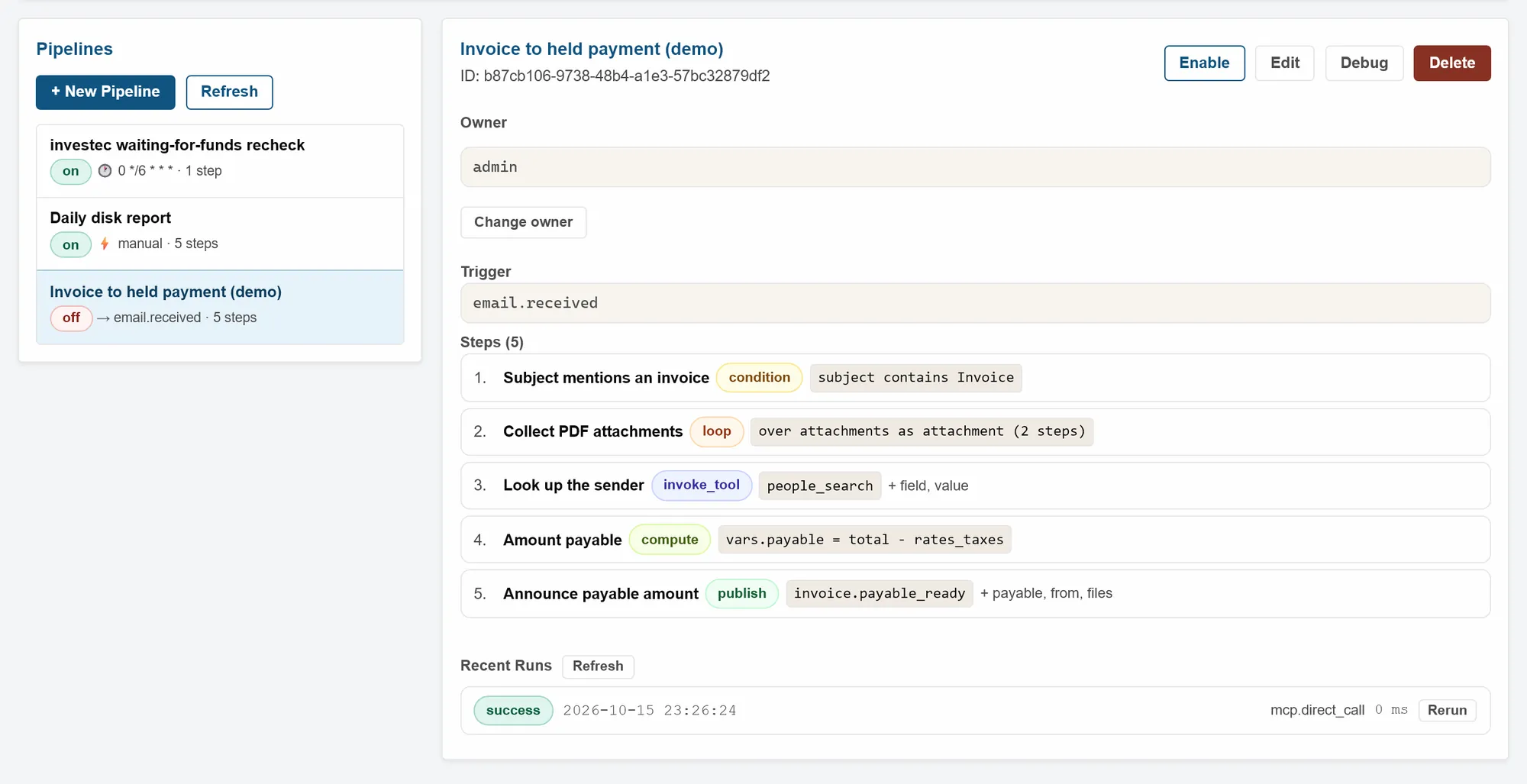
| Step | What it does |
|---|---|
invoke_tool | Calls a tool with values you fill in, as the pipeline's owner. |
publish | Sends a new event that other pipelines or plugins can react to. |
condition | Checks one or more fields. If the check fails, the run stops and is marked skipped. |
wait_for_event | Waits for an event caused by the previous step, for up to 30 seconds by default. |
loop | Runs nested steps once for each item in a list. |
store | Saves a value in a variable, or appends it to one. |
compute | Calculates with exact decimals. A missing number stops the run instead of counting as zero. |
delete_pipeline | Deletes this pipeline, for one-off jobs that clean up after themselves. |
Steps pass data with references
Any value in a step can refer to earlier data with double braces. A reference that finds nothing becomes an empty string.
Steps count from 0. Kamari refuses to save a pipeline whose step refers to a missing or later step.
| Reference | Means |
|---|---|
{{from_addr}} | A field of the event that started the run. |
{{_step3_people.0.person_id}} | The result of the fourth step (_step0_ is the first), first item of its people list. |
{{vars.payable}} | A variable set by a store or compute step. |
{{item.filename}} | The current item inside a loop. |
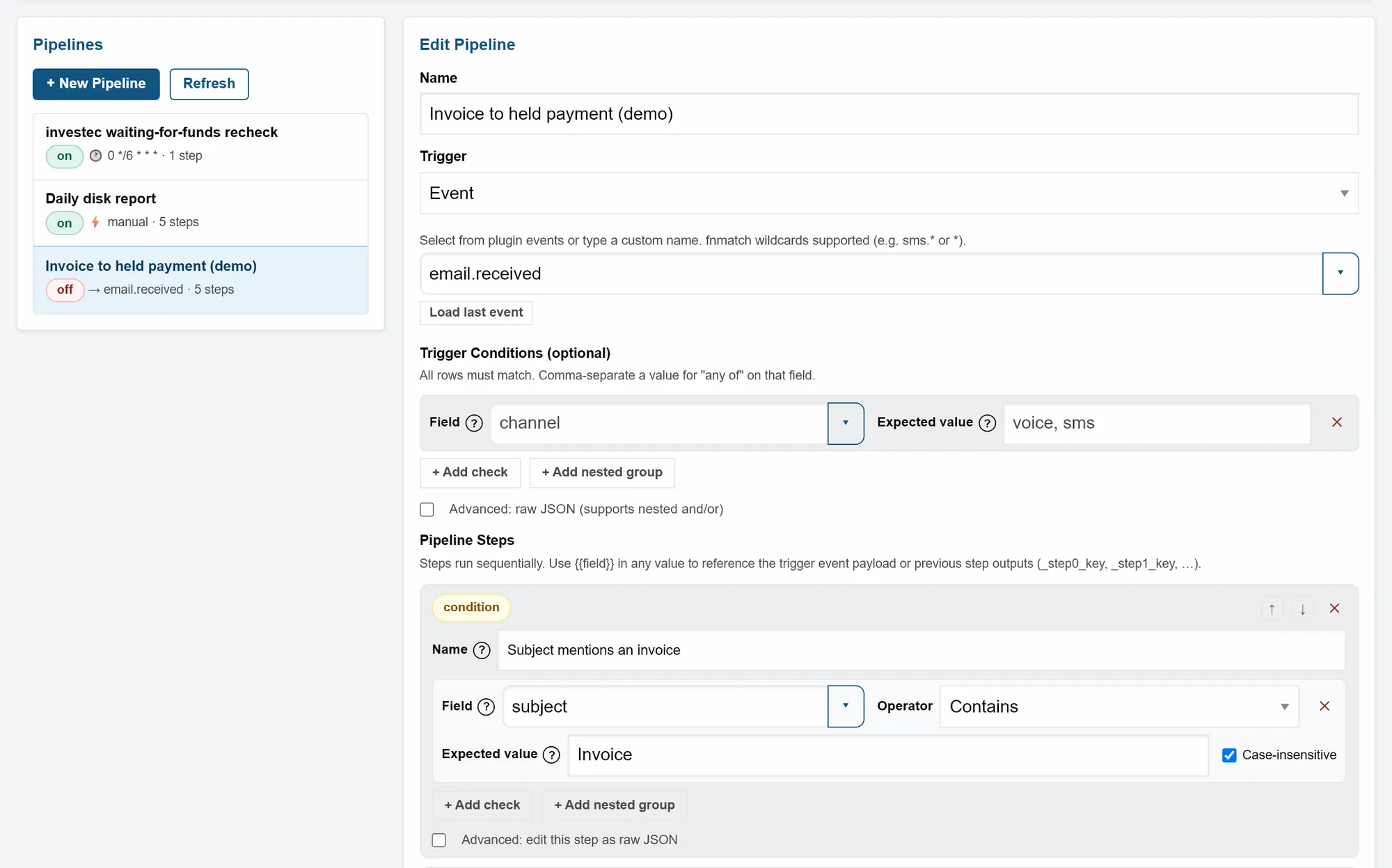
Conditions offer 14 comparisons
equals, not_equals, contains, not_contains, starts_with, ends_with, regex, gt, gte, lt, lte, any_of, exists and not_exists.
- Combine checks with AND or OR, and nest groups up to 12 levels deep.
- Text comparisons can ignore case. Number comparisons use exact decimals.
- The value you compare against can be a reference too, such as an earlier step's result.
- A broken regular expression counts as no match; it does not crash the run.
Pipelines never exceed their owner's permissions
- The server records who created a pipeline as its owner. The owner cannot be faked in the request.
- Before every tool step, Kamari checks the owner still holds that tool's capability. If not, the step fails.
- A pipeline last saved with a limited API key or token keeps that key's limits: it never runs a tool the key could not call.
- A pipeline with no recorded owner cannot call tools: its tool steps fail.
- You see and manage only your own pipelines, unless you hold
pipelines.all. - Payments through the banking plugin wait for your approval on the Payments page. By default, every payment waits.
- Every step records its input, result and timing, so you can see what each run did.
- Fields a plugin marks as sensitive, such as a sent email's subject and body, are recorded as a placeholder.
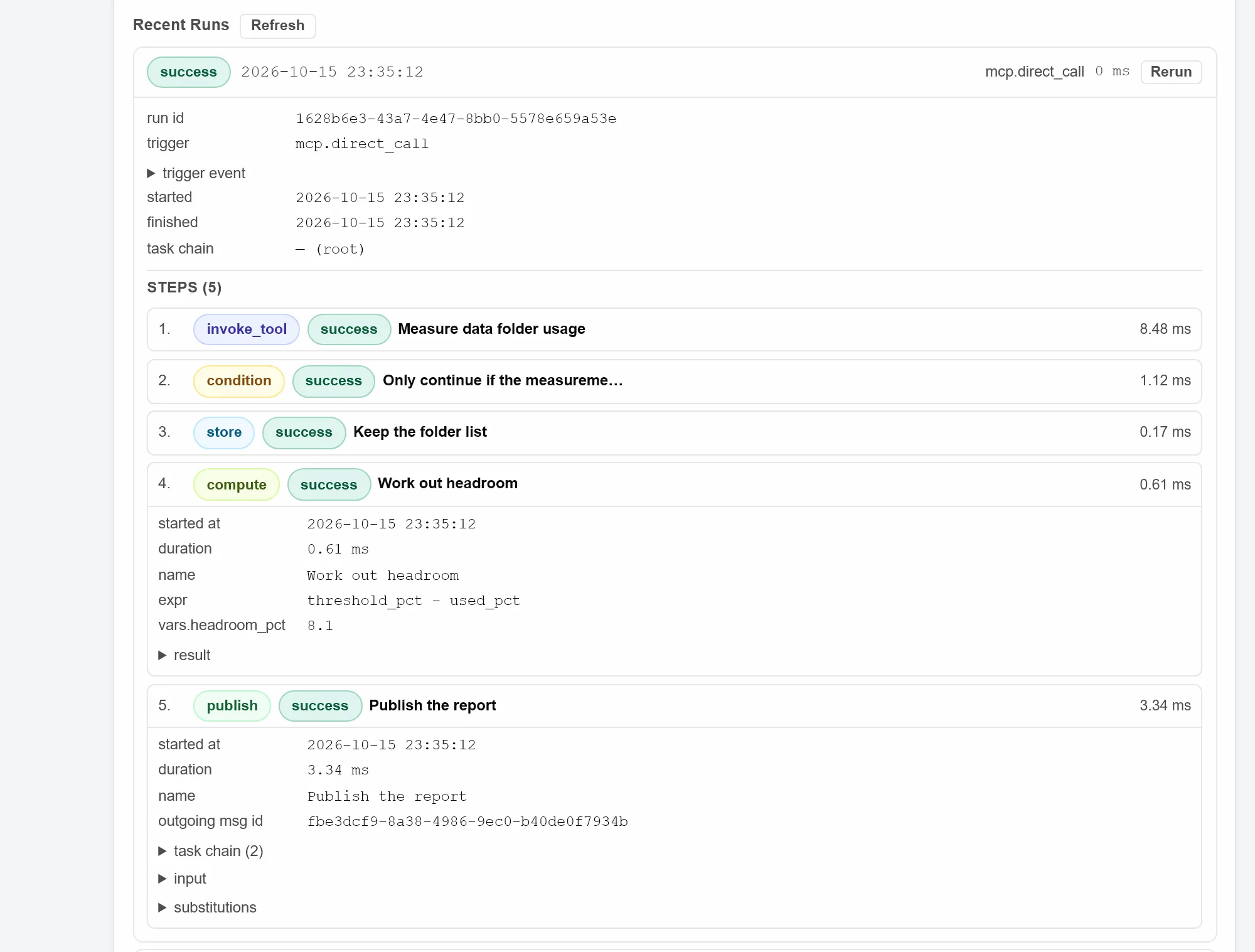
Every run is recorded and replayable
- Each run keeps its trigger, every step and the outcome: success, skipped or error. Kamari keeps the last 200 runs per pipeline by default.
- A list of active runs shows the current step of each, and flags runs older than 2 hours as stale.
- Rerun feeds a past run's trigger through the current version of the pipeline, to check a fix.
Step through a run in the debugger
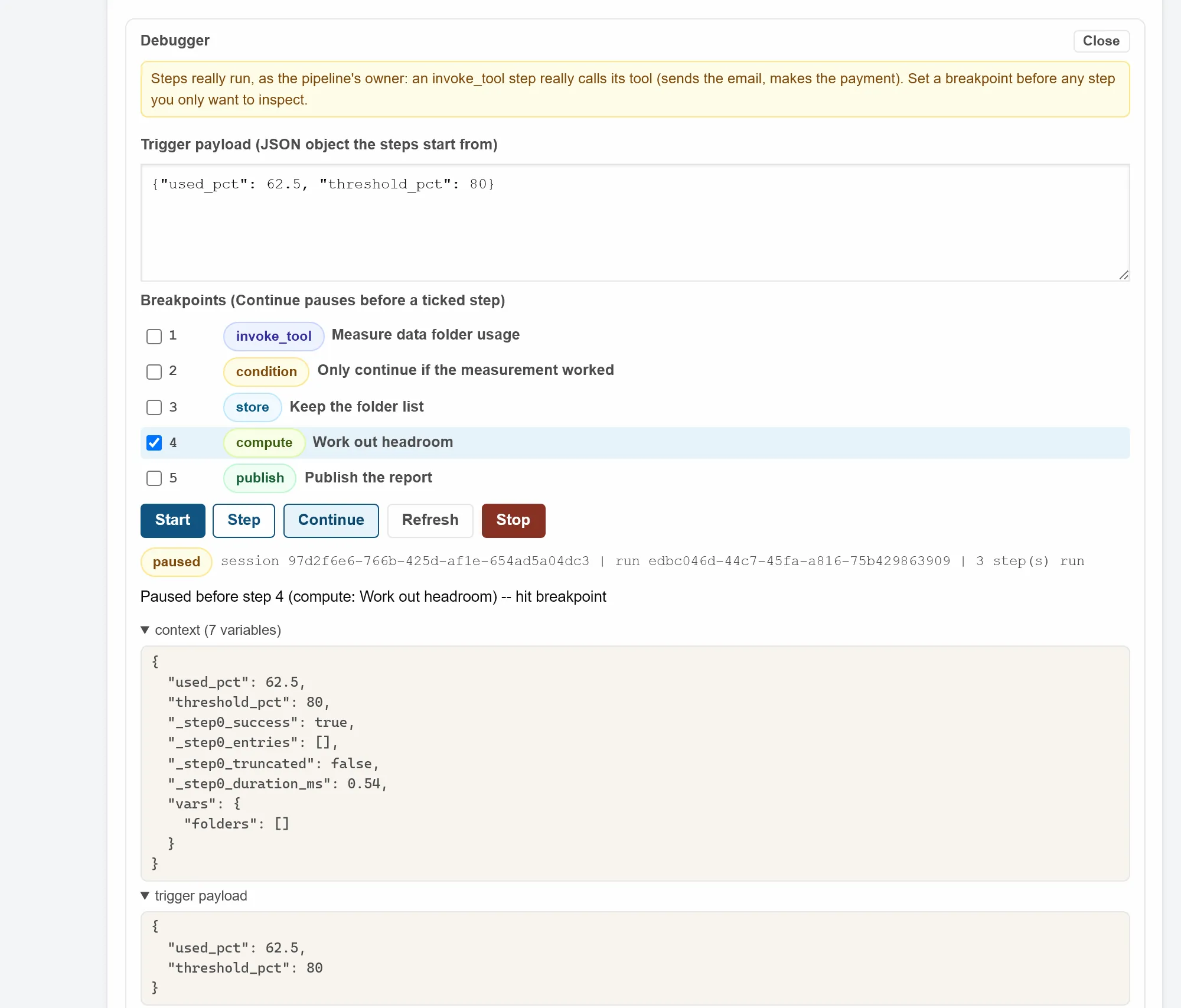
- Start a session paused before the first step, with a trigger payload you type in.
- Run one step at a time, or continue to the next breakpoint. A breakpoint inside a loop pauses on every pass.
- At each pause you see every variable and the messages the run produced.
- Steps really run, as the owner: a tool step really sends the email. Set a breakpoint before any step you only want to inspect.
Example: pay an invoice, after approval
This pipeline starts on email.received. It has ten steps; here they are in plain words.
- Continue only if the email came to the invoices mailbox, from a known sender, with "Invoice" in the subject and an attachment.
- Loop over the attachments and remember the first PDF.
- Stop if there was no PDF.
- Look up the sender in the People plugin.
- Stop if the sender is not a known payee.
- Fetch the PDF attachment.
- Read the total, the rates and taxes, and the reference from the PDF.
- Compute
total - rates_taxes, rounded to 2 decimals. - Create the payment. The banking plugin holds it for approval.
- Send a Telegram message with a link to approve it.
Every pipeline is also a tool
Each pipeline gets its own MCP tool, named pipeline_ plus the pipeline's name, so an AI client can start it. No two pipelines share a tool: a name that differs from another pipeline's only in case or punctuation is refused. Sixteen more tools manage pipelines, from pipelines_add_rule to the debugger's pipelines_debug_step.